Wallet Login Not Working: Signature and Network Troubleshooting
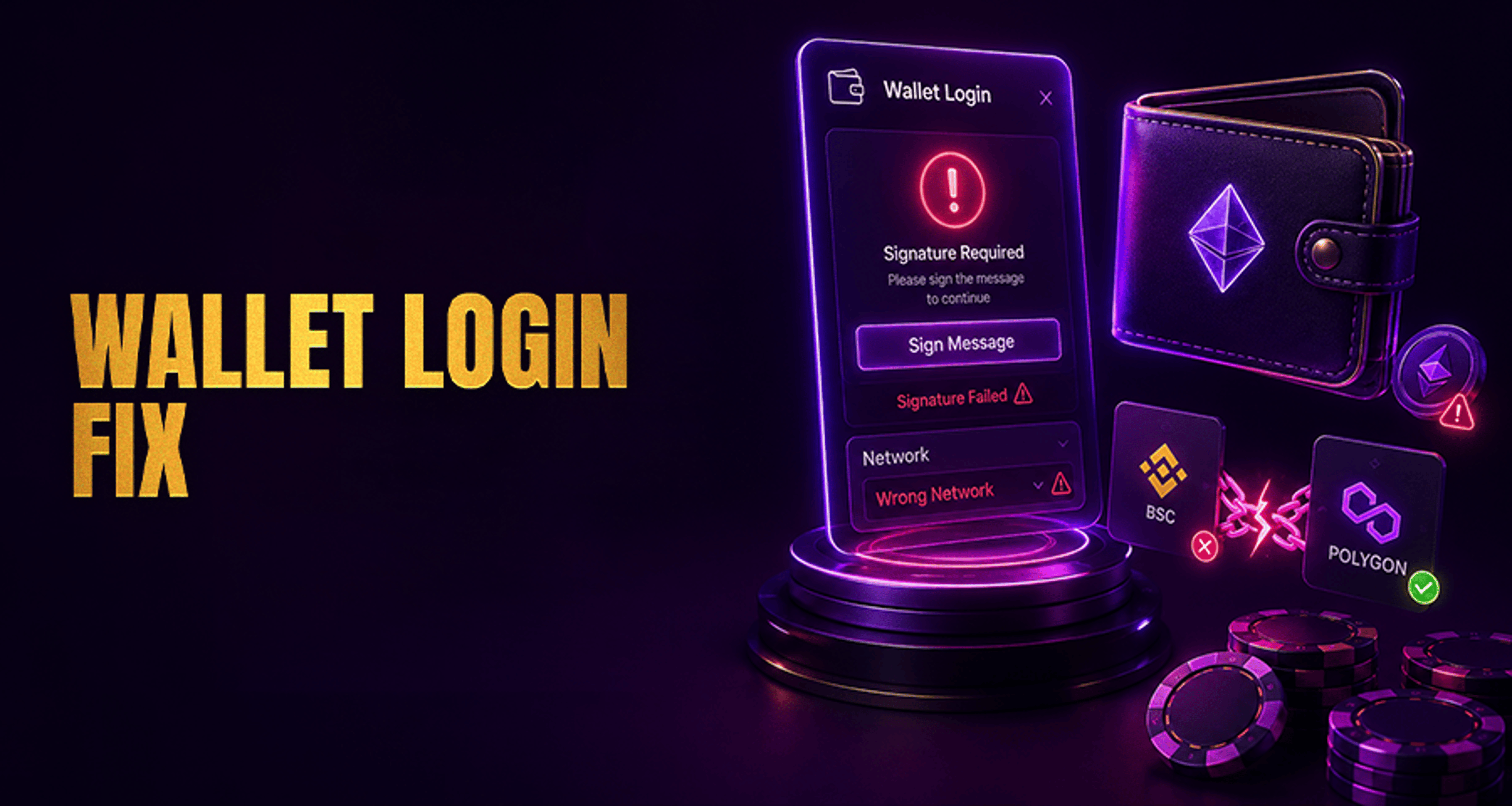
If your wallet login is not working, the problem usually comes down to one of two issues: the wallet signature step did not complete properly, or your wallet is connected to the wrong network for the login flow.
If your wallet login is not working, the problem usually comes down to one of two issues: the wallet signature step did not complete properly, or your wallet is connected to the wrong network for the login flow.
Unlike a password login, wallet authentication depends on your wallet app or extension responding to a signature request from the site. That means login can fail even when your wallet is connected and even when no blockchain transaction is being sent.
This guide walks through the most common wallet login blockers, how to fix them, and what to send Casino Account Support if you still cannot access your account.
Why wallet login fails during signature requests
A wallet signature request is a prompt asking you to approve a message with your wallet so the site can confirm that you control that wallet address. In most login flows, this is not the same as sending crypto and it does not always create an on-chain transaction.
Wallet login may fail during this step for several common reasons:
The signature popup never appears
The request appeared, but it was rejected or expired
The wallet is locked
The wallet extension or mobile app is not responding correctly
The site session is stale after a previous failed login attempt
The wallet is connected on the wrong network for the platform’s login flow
If you are also dealing with a wider account-access dispute or unresolved platform issue, it can help to review practical next steps in Online Casino Complaints Fix Issues Get Paid Fast.
How to fix a missing, rejected, or stuck wallet signature
Start with the signature request itself before changing multiple settings at once.
1. Check whether the signature popup is hidden or blocked
Sometimes the wallet prompt opens behind another browser window or inside the extension area without becoming visible.
Try this:
Look for a badge or notification on your wallet extension icon
Check whether the popup opened behind your browser window
Bring the wallet app or extension to the front manually
If you are on mobile, switch back to the wallet app and check for a pending approval request
If nothing appears, cancel the login attempt on the site and start again once.
2. Make sure the wallet is unlocked
A locked wallet often prevents the signature step from completing.
Before retrying login:
Open the wallet directly
Confirm it is unlocked
Check that the correct wallet account is selected
Retry the login from the site after unlocking
3. Retry after a rejected or expired request
If you dismissed the prompt, clicked reject, or waited too long, the login message may no longer be valid.
In that case:
Close the existing login attempt
Disconnect the wallet from the site if that option is available
Start a fresh login attempt
Approve the new signature request promptly
4. Check wallet extension or app connection issues
The wallet may be installed but not communicating properly with the browser or site.
Try these checks:
Confirm the wallet extension or app is updated
Disable duplicate or conflicting wallet extensions temporarily
Reopen the browser and wallet
Reconnect the wallet to the site from scratch
If you use more than one wallet extension, conflicts can cause the wrong prompt to appear or prevent any prompt from opening at all.
How to fix wrong-network errors during wallet login
A connected wallet can still fail login if it is set to the wrong blockchain network for the session.
This does not always mean your wallet is broken. It often means the site expects you to connect on a supported chain, but your wallet is currently pointed somewhere else.
1. Check the selected network in your wallet
Open the wallet and review the currently active network before trying again.
If the site expects a different chain than the one selected in your wallet, switch to the required network first.
2. Switch networks before retrying login
After changing the wallet network:
Return to the site
Refresh the page
Reconnect the wallet if needed
Start a new login attempt
Refreshing matters because some sites keep the previous wallet session active even after you switch networks.
3. Reconnect from a clean session
If the wrong network was selected during the first attempt, the connection state may remain stuck.
A cleaner retry usually looks like this:
Disconnect the wallet from the site
Refresh or reopen the login page
Reconnect the wallet
Confirm the correct account and network are selected
Approve the new signature request
If a login error continues after switching networks, treat it as both a network and session issue rather than assuming only one cause.
Browser, device, and wallet connection checks
If the signature and network settings both look correct, move on to browser and device troubleshooting.
Disable conflicting wallet extensions
Running several wallet tools in the same browser can interrupt wallet detection or signature handling. Temporarily disable extra wallet extensions and test again with only the one you want to use.
Clear cached site session data
A stale site session can keep serving an invalid connection state.
Try:
Clearing the site’s cookies and cached data
Closing the browser tab
Opening a fresh session
Reconnecting the wallet and retrying login
Try another supported browser or device
If the problem continues in one browser, test the same wallet login flow in another supported browser or on another device. This helps you separate a wallet-side issue from a browser-specific one.
Update the wallet app or extension
An outdated wallet version can break signature prompts, session handling, or network switching behavior. Install the latest available update, then retry from a fresh session.
Reconnect the wallet completely
A full reconnect is often more effective than repeatedly refreshing the same broken state.
Use this order:
Disconnect the wallet from the site
Close the login page
Reopen the page
Connect the wallet again
Confirm the correct network
Approve the signature request
What to send support if wallet login still fails
If you have already retried login after reconnecting the wallet and switching to the correct network, contact Casino Account Support with clear technical details.
Include:
Your wallet type
Browser name and version, or mobile device type
Whether you are using desktop or mobile
The network selected at the time of login
The exact error message shown
Whether the signature prompt was missing, rejected, or approved
Whether you already tried disconnecting and reconnecting the wallet
Whether the issue happens in another browser or device too
The more specific your report, the easier it is for support to tell whether the issue is related to wallet behavior, network mismatch, or a stuck site session.
FAQ
Why is my wallet not showing the login signature prompt?
The prompt may be hidden, blocked, expired, or interrupted by another wallet extension. Check whether your wallet is unlocked, look for a pending popup, and retry the login from a clean session.
Can I log in if my wallet is connected to the wrong network?
Usually, you should switch to the required network first, then refresh the session, reconnect the wallet, and retry login.
Why does wallet login fail even after I approve the signature?
This can happen if the session expired, the wallet changed networks mid-flow, the wrong account was selected, or the site connection remained stuck after an earlier failed attempt.
Does signing in with a wallet require a blockchain transaction?
Not always. A wallet login signature is commonly used to verify wallet control and may not involve sending funds or creating an on-chain transaction.
What information should I send support if wallet login keeps failing?
Send your wallet type, browser or device, selected network, exact error message, and the troubleshooting steps you already tried.
Final next step
Retry login after reconnecting the wallet and switching to the correct network. If the issue still persists, contact Casino Account Support with your wallet, device, browser, selected network, and exact error details so the problem can be checked more efficiently.